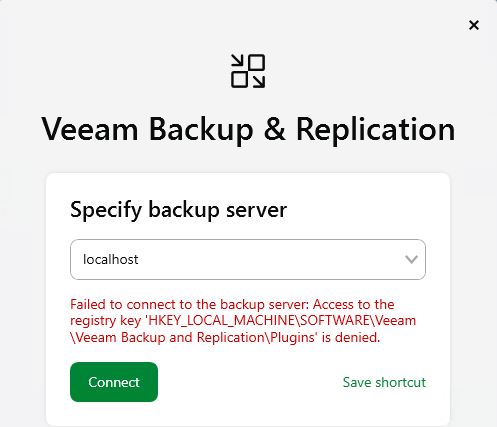
Ok, I've given myself enough permissions to access this registry key and all sub-keys using the PowerShell script below, and it seems to allow me to log in now:
# Run in an elevated PowerShell window (Administrator)
$path = 'HKLM:\SOFTWARE\Veeam\Veeam Backup and Replication\Plugins'
try {
$acl = Get-Acl -Path $path
# Allow standard users to read the key (and subkeys)
$rule = New-Object System.Security.AccessControl.RegistryAccessRule(
'Users',
'ReadKey',
'ContainerInherit,ObjectInherit',
'None',
'Allow'
)
Right now nothing is wrong with the login, so I'm not sure what there is to see, but I'm happy to let you have a look at the install as we have several other clients I will want to upgrade to v13 in the near future.
The only issue I have at the moment is that one of the client servers ("fileserver") isn't getting their updated components for some reason. When I tried to make logs for your case / ticket it said my client server ("fileserver") certificate is invalid?
After upgrading (using the Windows Server ISO), I can no longer connect to B&R from the backup server using the console unless I start it with Run as administrator. Shouldn’t it prompt for permission via UAC when admin privileges are required? It has beed so in v12.
Error: Failed to connect to the backup server: Access to the registry key ‘HKEY_LOCAL_MACHINE\SOFTWARE\Veeam\Veeam Backup and Replication\Plugins\13.0.0\Console’ is denied
Connecting from a remote machine (for example, my admin workstation) works without any problems.
Does anyone have a quick fix for this, or should I reach out to support directly?
Alex shared a quick fix, but I strongly recommend opening a support case so we can investigate this issue properly.
A customer should not have to change permissions on their own.
I just wanted to follow up and let you know that I was able to resolve the issue with support. We fixed it by adjusting the permissions on the affected registry key.
I'm getting this same issue now on the latest 13.0.2.29 upgrade.
It works when i run the console "as administrator"
This is an older test/dev VBR that has been through many upgrades over the years, I have another test server (that is newer) that is fine. They seem to have different permissions on that reg key.
I manually gave Authenticated Users read access (the same as the working server) and its now fine.
Hi everyone, I ran into the same issue with a customer. After upgrading from v12 to v13, I received an error message when opening the console: "Access to the Registry key HKEY_LOCAL_MACHINE\SOFTWARE\Veeam\Veeam Backup and Replication\Plugins\ is Denied." However, launching Veeam using "Run as Administrator" works. I opened a support case, and they directed me to this forum and asked me to add my AD group to the ACLs for the registry key folder in question; this actually solved the problem. It is still an unusual case, though, because my AD group—which is T1 (AD Tier Model)—is already part of the VM's Local Administrators group, which in turn it was already included in the registry key's ACLs. So, I suspect it is a UAC filtering issue that didn't occur in v12.